Chrome extension for Google Flow

Automate your Google Flow work in a few clicks.

Add your prompts once and press Start. FlowForge sends them to Google Flow one by one and saves every image and video to a folder on your computer, ready to use.

Coming soon to the Chrome Web Store

Works with your own Google Flow account. We never ask for your Google password.
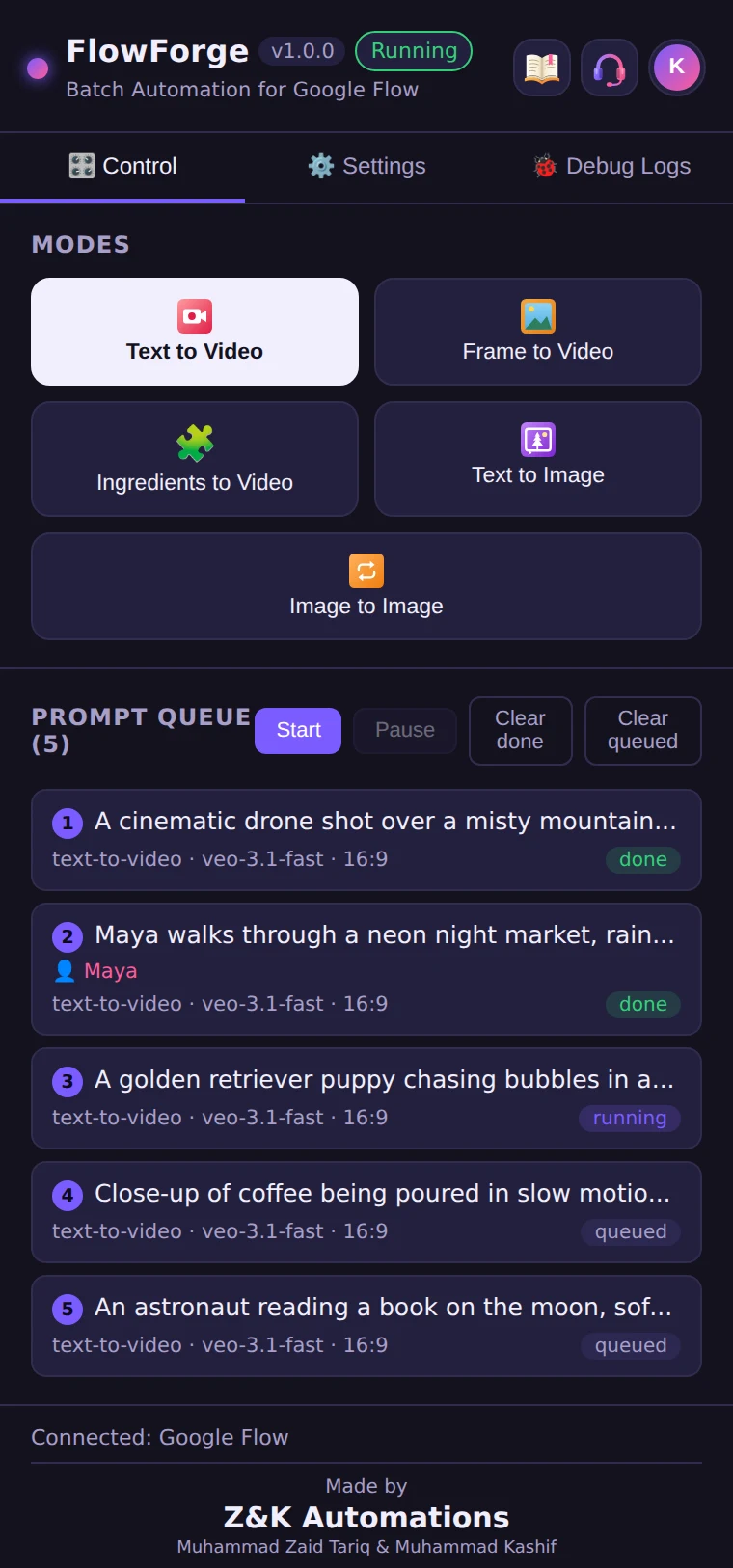
The FlowForge side panel: the five modes and a prompt queue running a batch

Five modes, one queue

Choose what you want to create, whether it's images or videos. Each mode shows only the options it needs.

Text to Video

Turn a written prompt into a video, with characters and speaker voices added for you.

Video

Frame to Video

Start a video from your own image, or add a second image as the final frame.

Video · 1–2 images

Ingredients to Video

Guide a video with up to six reference images for every prompt.

Video · 1–6 images

Text to Image

Create images from your prompts, with an optional matching style across the batch.

Image

Image to Image

Make new images from your references, matched to prompts in order.

Image · 1–6 images

How it works

Go from a list of prompts to a folder of finished files in four simple steps.

  1. Step 1

    Connect to Flow

    Open Google Flow in a tab of this Chrome window. When the status shows Connected, FlowForge is ready.

  2. Step 2

    Choose a mode

    Choose what you want to create from the 5 modes, whether it's images or videos.

  3. Step 3

    Add your prompts

    Paste your prompts or upload a .txt, .csv or .xlsx file, with one blank line between prompts.

  4. Step 4

    Press Start

    Click Add to Queue, then press Start. FlowForge sends every prompt to Flow, retries any that fail and downloads each result.

Built for long batches

Everything you need to run large batches smoothly, without watching every step.

Characters and voices by name

Mention a saved character or speaker in your prompt and FlowForge adds them automatically.

Up to 8 prompts at once

Run prompts in parallel, with a random pause between each so Flow keeps a steady pace.

Automatic downloads

Every result is saved to a FlowForge folder in your Downloads, in the quality you choose, with clear file names.

Retries and clear alerts

Failed generations are retried automatically, and anything that needs you is shown in plain words.

Consistent image series

In Text to Image, each new image can build on the previous one, so a series keeps the same look.

Reference images in order

Images are matched to prompts in the order you upload them, with a preview before you run.

🌐Available in 11 languages

Englishاردوहिन्दीEspañolPortuguêsالعربيةBahasa IndonesiaFilipinoTiếng Việtनेपालीবাংলা

Your account stays yours

FlowForge collects only what's needed to keep your account secure. Read the full details in our Privacy Policy.

Read the Privacy Policy
  • No Google password, everYou sign in to Google Flow yourself. FlowForge never asks for, collects or stores your Google password.
  • Secure sign-inEvery account is verified by email, and your password is stored securely by our sign-in provider.
  • One active deviceYour account can be active on only one browser at a time, which helps keep it safe.
  • No selling, no ad trackingWe don't sell personal information or build advertising profiles.

Frequently asked questions

Does FlowForge use my Flow credits?
Yes. FlowForge submits prompts through your own Google Flow account, so each generation uses your Flow plan and credits, exactly as if you had submitted it by hand.
Do I need a paid Google Flow plan?
No. FlowForge works with any Google Flow account. Some models and download qualities need a paid Google plan (Plus, Pro or Ultra), and FlowForge shows which ones in the menu.
Is FlowForge made by Google?
No. FlowForge is an independent product by Z&K Automations and is not affiliated with, endorsed by or sponsored by Google.
Which browsers does FlowForge work on?
FlowForge works in Google Chrome on a computer (Windows, macOS or Linux). Chrome on phones doesn't support extensions.
Where are my images and videos saved?
In a FlowForge folder inside your computer's Downloads folder. You can change the folder name in Save to folder, or turn off Auto Download to save files yourself.
How many prompts can I run at once?
Up to 8 at the same time, and you can add as many prompts to the queue as you like. FlowForge works through them one batch after another.
Can I use my account on two computers?
You can use any computer, but only one can be signed in at a time. Signing in on a new one gives you the option to log out the other.
How do I delete my account?
Email us at zk.automations.official@gmail.com from the address you registered with and ask for your account to be deleted. See the Privacy Policy for details.

Can't find your answer? Contact support

Ready to run your first batch?

Our user guide explains every mode and setting, so you can start with confidence.